
Laptop Suddenly Stops Detecting Wi-Fi Networks: What to Check
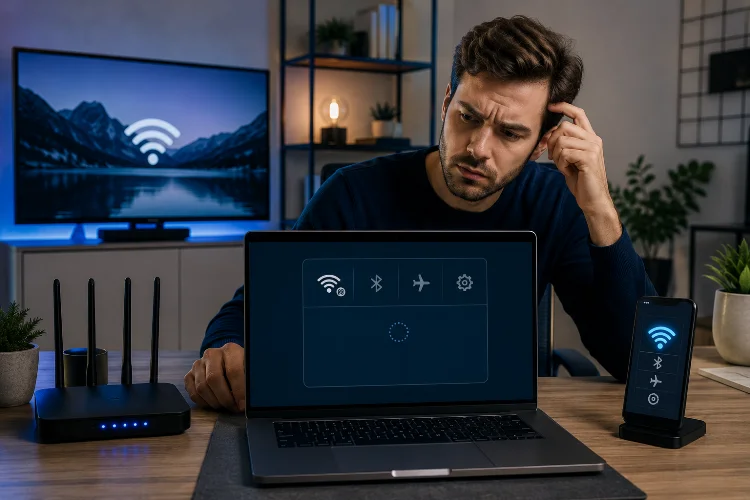
Your laptop was connected perfectly yesterday, but today the list of available Wi-Fi networks is completely empty. Your phone can still see the home router, your television is streaming normally, yet the laptop acts as if wireless networks no longer exist.
It is frustrating, but it does not automatically mean the Wi-Fi hardware has failed.
When a Laptop Suddenly Stops Detecting Wi-Fi Networks, the cause can range from something as simple as airplane mode to a disabled wireless adapter, damaged driver or incompatible router setting.
Microsoft specifically recommends checking whether Wi-Fi is enabled, verifying the wireless adapter in Device Manager and testing the network with another device when troubleshooting missing networks.
Working through the possibilities one at a time is usually faster than changing random settings.
First, Check Whether Wi-Fi Is Actually Turned On
Start with the obvious because it is surprisingly easy to overlook.
Open your laptop’s network settings and confirm that Wi-Fi is enabled. Also make sure airplane mode is switched off. Some Windows laptops have a physical wireless switch or keyboard shortcut that can disable the Wi-Fi radio accidentally.
Microsoft includes checking Wi-Fi and airplane mode among its first troubleshooting steps, while Intel recommends confirming that the wireless radio has not been disabled through a hardware control.
After checking those settings, turn Wi-Fi off for several seconds and switch it back on. A simple restart of the laptop is also worth trying before moving into more advanced troubleshooting.
Check Whether Other Devices Can See the Network
Next, determine whether the laptop is really the problem.
Take your phone and check the available wireless networks from roughly the same location. If your phone sees your home Wi-Fi and neighbouring networks normally while the laptop shows nothing, the issue is probably specific to the computer.
Microsoft recommends testing the same network from another device because this quickly separates a laptop problem from a router or broader wireless-network failure.
If no device can detect your router, restart the router and check whether its wireless radios are enabled.
This distinction can save you from spending an hour reinstalling laptop drivers when the router was actually responsible.
Look for the Wireless Adapter in Device Manager
On Windows, Device Manager provides an important clue.
Open Device Manager > Network adapters and look for your wireless adapter. Names vary, but you may see Intel Wi-Fi, Realtek Wireless, MediaTek, Qualcomm or another manufacturer.
Microsoft states that if the wireless adapter does not appear in Device Manager, Windows is not currently detecting it, and manually installing a driver may be necessary.
If the adapter appears but is disabled, enable it and test Wi-Fi again.
Also look for a warning symbol beside the adapter. That can indicate a driver or hardware problem rather than ordinary wireless interferance.
If the adapter disappears repeatedly even after restarting, the issue deserves closer investigation.
A Driver Problem May Make Networks Disappear
Wireless drivers allow the operating system to communicate with the Wi-Fi hardware.
A corrupted, outdated or incompatible driver can therefore produce strange symptoms, including networks disappearing after an operating-system update.
Intel recommends updating wireless drivers when certain Wi-Fi networks are not visible. It also suggests trying the driver supplied by the laptop manufacturer because OEM drivers may contain device-specific customisations.
On Windows, you can also uninstall the wireless adapter through Device Manager and restart the computer, allowing Windows to attempt driver reinstallation. Microsoft includes driver removal and reinstallation among its troubleshooting procedures.
Whenever possible, download drivers directly from your laptop manufacturer or wireless-adapter manufacturer rather than unofficial driver websites.
Check Whether Only Certain Wi-Fi Networks Are Missing
Sometimes the laptop can detect Wi-Fi, just not the network you want.
For example, it might display several neighbouring networks but fail to reconise your own router. That points toward compatibility or router configuration rather than a completely failed adapter.
Older laptops may not support every frequency band or wireless standard available on a newer router.
Intel also notes that channel configuration can affect whether particular networks appear. In one documented example, devices with certain configurations may have trouble detecting 2.4 GHz access points using channels 12 or 13, and Intel recommends testing channels 1, 6 or 11 where appropriate.
Avoid changing router channels blindly, though. First determine whether every network is missing or only one specific SSID.
Restart the Router and Move Closer
Signal strength still matters.
If the laptop detects the network downstairs but loses it completely in an upstairs bedroom, the issue may simply be weak coverage. Distance, walls and wireless interference can make marginal signals disappear from the available-network list.
Move close to the router and scan again.
Restarting the router is also a reasonable test if several devices are experiencing wireless problems. Microsoft recommends restarting network equipment as part of its Wi-Fi troubleshooting process.
If the laptop suddenly detects the network nearby, investigate coverage rather than immediately replacing the Wi-Fi adpater.
You may need better router placement, a mesh system or an additional access point.
Mac Users Should Check the Wi-Fi Network Service
The troubleshooting process is slightly different on macOS.
If Wi-Fi itself is missing from Network settings rather than simply showing no available networks, Apple says the Wi-Fi network service may not be configured. Users can check System Settings > Network and add the Wi-Fi service where necessary.
Apple also recommends restarting the Mac, updating macOS and checking VPN or security software when troubleshooting wireless connectivity.
As with Windows, testing another Wi-Fi network is useful. Try a phone hotspot, for example.
If your Mac detects the hotspot but not your home router, the router configuration becomes a stronger suspect.
Know When Hardware Failure Becomes More Likely
Software troubleshooting cannot fix physically damaged hardware.
If Wi-Fi remains completely absent after restarting, updating or reinstalling drivers, checking firmware settings and confirming that the operating system cannot detect the wireless adapter, hardware failure becomes more plausible.
Intel recommends checking hardware wireless controls, performing a clean driver installation, and updating relevant BIOS and chipset components when a Wi-Fi adapter is disabled or not functioning correctly.
Before replacing anything, check your laptop manufacturer’s diagnostics and warranty options.
A USB Wi-Fi adapter can also be useful as a temporary test. If external Wi-Fi works immediately while the internal adapter remains undetected, that provides another clue that the internal hardware or its configuration may be responsible.
When a Laptop Suddenly Stops Detecting Wi-Fi Networks, start with Wi-Fi controls and airplane mode before moving to adapters, drivers and router settings. Compare another device, check Device Manager, test closer to the router and determine whether all networks or only one has disappeared.
If the adapter remains completely undetected after software troubleshooting, consider manufacturer diagnostics for a possible hardware problem.