
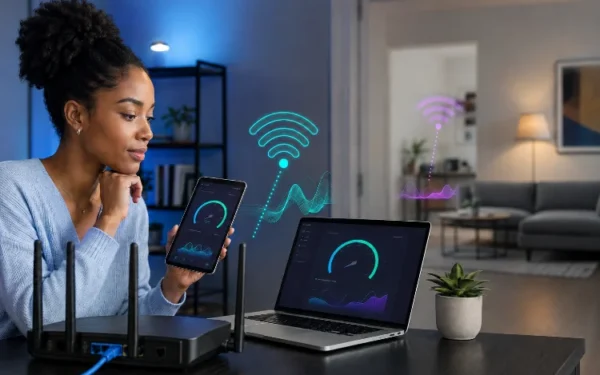
Why Your Wi-Fi Speed Changes Between Rooms, Devices and Times of Day

Have you ever run a speed test in the living room and seen 600 Mbps, only to walk upstairs and get 150 Mbps? Even stranger, your new phone might be much faster than an older laptop sitting in exactly the same place. Then evening arrives and everything seems slower again.
This behaviour can make home networking feel unpredictable, but there is usually a logical explanation.
Wi-Fi Speed is influenced by much more than the broadband package you pay for. Distance from the router, walls, wireless interference, device hardware, frequency bands and network congestion can all change the result.
Google Fiber notes that the internet plan determines the speed entering a home, while individual device capabilities affect the speeds users actually experience.
Understanding those variables makes Wi-Fi problems much easier to diagnose.
Distance From Your Router Changes Signal Quality
Wi-Fi uses radio waves, and those signals become weaker as your device moves farther from the access point.
That is why a laptop sitting a few metres from the router may achieve excellent speeds while the same laptop performs much worse at the opposite end of the house.
Distance is only part of the problem. Every physical object between you and the router can affect the signal. Thick walls, furniture, appliances and other obstacles can reduce wireless performance.
Google recommends moving devices closer to the router and placing Wi-Fi equipment in open, unobstructed locations when troubleshooting slow connections.
This explains why two rooms located a similar distance from the router can still produce very different results.
Walls and Building Materials Matter More Than You Think
Not every wall affects wireless signals in the same way.
A thin internal wall may have relatively little impact, while concrete, brick, metal and dense construction materials can make it much harder for radio signals to travel through a building.
Imagine your router is downstairs in the front room. Your upstairs office might require the signal to travel through a ceiling, several walls and large pieces of furniture before reaching your laptop.
That combination can significantly reduce signal quality.
This is why router placement matters so much. Hiding networking equipment inside a cupboard may look tidy, but it can create unnecessary obstacles. Moving the router into a central, elevated and open location can sometimes improve coverage without changing your broadband package at all.
Wireless Interference Can Make Speeds Unpredictable
Your Wi-Fi network does not operate in complete isolation.
Nearby wireless networks and other electronic equipment can compete for or interfere with radio spectrum. Cisco notes that non-Wi-Fi devices can create interferance in the 2.4 GHz band, reducing the amount of usable wireless capacity.
This is particularly relevant in apartment buildings where dozens of neighbouring routers may be visible.
The 2.4 GHz band generally offers useful range but has limited spectrum and can become crowded. The 5 GHz band provides more capacity and is commonly used for higher-performance connections, while newer Wi-Fi 6E and Wi-Fi 7 equipment can also use 6 GHz where supported.
The best band therefore depends on distance, device compatibility and your wireless environment rather than simply choosing the highest number.
Different Devices Can Produce Completely Different Speeds
Testing Wi-Fi with two different devices is not necessarily a fair comparison.
A newer laptop may support Wi-Fi 6 or Wi-Fi 7, wider channels and more advanced wireless hardware. An older laptop could be limited by an earlier Wi-Fi generation, fewer spatial streams or a slower adapter.
Both devices might connect to the same router, but they do not necessarily have the same maximum capabilities.
Intel points out that theoretical Wi-Fi speeds are shared across devices and that real-world networks do not necessarily achieve the maximum figures stated by wireless standards.
Software can matter too. Driver configuration, background applications, power-saving modes and operating-system behaviour may influence wireless perfomance.
When investigating a suspiciously slow device, compare it with another modern phone or laptop in exactly the same location before assuming your router is faulty.
Your Home Gets Busier at Certain Times
Sometimes the wireless signal itself is perfectly fine. The network is simply busier.
Consider what happens around 8 p.m. One television might be streaming a 4K programme, another person is downloading a game, phones are watching videos, laptops are synchronising cloud files and security cameras continue sending data.
All of those activities share network resources.
Modern Wi-Fi generations are designed to manage multiple devices more efficiently, but available capacity is still finite. A speed test performed while everybody is online can therefore produce a lower result than one performed early in the morning.
This is why testing at different times can reveal useful patterns rather than relying on one result.
Your ISP Can Also Slow Down During Busy Hours
There is another layer beyond your home network: your internet provider.
Even if the connection between your laptop and router is excellent, traffic still has to travel through the ISP’s infrastructure and the wider internet.
The FCC has reported that broadband traffic rates increase during peak hours as more people access the internet, creating greater potential for network congestion.
This means an evening slowdown is not automatically a Wi-Fi problem.
If every device becomes slower at approximately the same time each day—even when tested over Ethernet—the bottleneck may exist outside your wireless network.
A useful troubleshooting method is to compare wired and wireless tests. If both drop significantly during busy periods, your Wi-Fi may not be responsible.
Download Speed Is Only Part of the Experience
A connection can have impressive download speed and still feel frustrating.
Latency measures how long data takes to travel between points on a network. Cloudflare explains that round-trip time measures the time required for a request to travel to its destination and return, generally expressed in milliseconds.
For normal browsing, moderate variations may not be obvious. For gaming, video calls and other interactive applications, however, latency can be just as important as raw bandwidth.
Stability matters as well.
A consistant 300 Mbps connection can provide a better everyday experience than a connection jumping between 700 Mbps and 80 Mbps every few minutes.
That is why diagnosing wireless quality should include speed, latency, stability and coverage rather than focusing on one huge speed-test result.
How to Find the Real Cause of Changing Wi-Fi Speeds
The easiest approach is to change one variable at a time.
Start by testing close to the router with a modern device. Then test the same device in several rooms without changing the testing service. Repeat those measurements at different times of day.
Next, compare multiple devices from the same location.
Finally, perform an Ethernet test if possible. This helps seperate problems with the broadband connection from problems happening specifically over Wi-Fi.
If speeds only fall in distant rooms, investigate coverage and router placement. If one device is consistently slower, examine that device. If everything becomes slower every evening, ISP or household congestion deserves closer attention.
This method is much more useful than repeatedly restarting the router and hoping the numbers improve.
Changing Wi-Fi Speed is usually the result of distance, obstacles, interference, device capabilities or changing network demand. Evening congestion can also occur inside your home or farther upstream at your ISP. Instead of judging your connection from one speed test, compare rooms, devices, times and Ethernet performance.
Identifying the real bottleneck makes choosing the right fix much easier.
Related Articles