Smart Washing Machine Connectivity Issues and Network Optimization
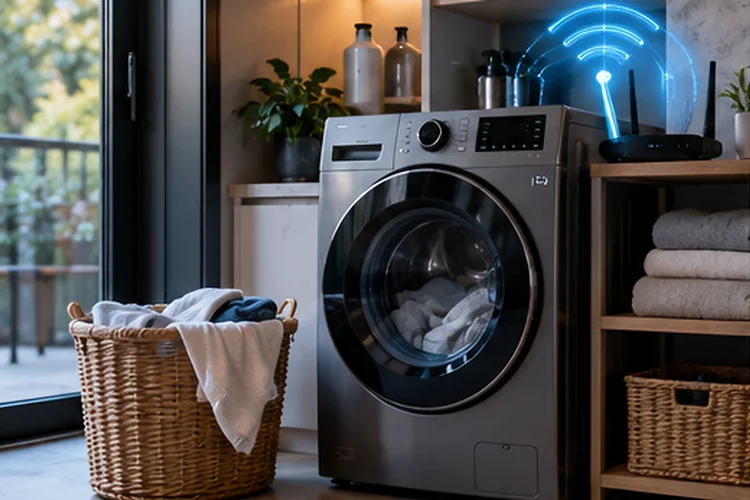
A smart washing machine sounds simple enough: connect it to Wi-Fi, open an app, and get notifications when your laundry is finished. In reality, keeping a large appliance reliably connected can sometimes be more complicated than connecting a phone or laptop.
Laundry rooms are not always friendly environments for wireless networking. The washing machine may sit far from the router, behind several walls, next to metal appliances, or in a garage or basement where Wi-Fi coverage is already weak.
Many appliances also have more limited wireless hardware than smartphones.
Understanding smart washing machine connectivity issues and network optimization can therefore save you from repeatedly deleting the appliance from its app or factory-resetting your router.
Problems often come from something relatively simple: unsupported Wi-Fi bands, poor signal strength, band steering, outdated credentials, or unstable IoT network settings.
Samsung currently recommends a 2.4 GHz connection and adequate signal strength when pairing compatible washers with SmartThings, while LG states that its ThinQ appliances use 2.4 GHz Wi-Fi.
Start With the 2.4 GHz Wi-Fi Requirement
One of the most common mistakes is assuming that every smart appliance works on the same Wi-Fi bands as a modern phone.
Many washing machines still rely on 2.4 GHz Wi-Fi.
This is not necessarily a disadvantage. A washer sends relatively small amounts of data, such as cycle status, notifications, diagnostics, or remote commands. It does not need the huge bandwidth required for 4K streaming.
The 2.4 GHz band also travels farther and generally penetrates walls better than higher frequencies.
Samsung’s current SmartThings instructions for compatible washing machines specify that a 2.4 GHz connection should be available during setup. LG likewise states that ThinQ appliances support the 2.4 GHz Wi-Fi band.
The problem appears when a router combines 2.4 GHz and 5 GHz under one network name.
Most modern routers handle this automatically through band steering, but certain IoT devices can struggle during onboarding.
If pairing repeatedly fails, temporarily disable band steering or create a dedicated 2.4 GHz IoT network.
Once the washer is successfully connected, you can test whether your normal combined network remains stable.
Signal Strength Matters More Than Internet Speed
Your washing machine does not need Gigabit Internet.
It needs reliable Wi-Fi.
There is a big difference.
A 100 Mbps internet connection with excellent signal quality may provide a better smart-appliance experience than a 2 Gbps fiber connection whose router barely reaches the laundry room.
Samsung recommends having a sufficiently strong Wi-Fi signal near the appliance during SmartThings setup. LG also notes that connectivity problems may occur when the router is too far from the appliance and suggests improving coverage when necessary.
This is especially relevant in garages, basements, utility rooms, and outdoor laundry areas.
Metal appliances, concrete walls, water pipes, and large cabinets can all affect wireless propagation.
Try checking Wi-Fi strength with your phone while standing next to the washing machine. If your phone is already struggling there, the washer’s smaller Wi-Fi module may have an even harder time maintaining a reliable connection.
Moving the router slightly or adding a properly positioned mesh node may solve the problem without changing anything on the appliance itself.
Band Steering and Mesh Wi-Fi Can Cause Pairing Problems
Mesh Wi-Fi is excellent for increasing coverage, but smart-home devices can behave differently from phones and laptops.
Some IoT products have limited support for advanced roaming features or simply prefer staying connected to one access point.
TP-Link’s current guidance for smart-home devices notes that many IoT clients operate only on 2.4 GHz and can experience pairing or connection issues on mesh networks.
Its troubleshooting recommendations include using a dedicated IoT network and, where appropriate, adjusting features such as Fast Roaming and Beamforming.
You do not need to disable every advanced router feature immediately.
Instead, change one thing at a time.
If the washer repeatedly fails during setup, temporarily use a dedicated 2.4 GHz SSID. If it pairs successfully but later disconnects, investigate whether it is jumping between mesh nodes or holding onto a distant one.
Node placement matters as well.
Do not put a mesh satellite directly inside a dead zone. The node needs a good upstream connection before it can provide dependable service to the washing machine.
Check the Wi-Fi Password and Saved Network Configuration
Smart appliances remember network credentials.
That becomes a problem after changing your Wi-Fi name or password.
Your phone may reconnect immediately because you entered the new credentials, while the washer quietly continues trying to access the old network.
If your smart washing machine suddenly becomes unavailable immediately after a router replacement or Wi-Fi configuraton change, this should be one of the first things you check.
Samsung’s setup process places compatible washers into an access-point or pairing mode and then transfers the Wi-Fi information through SmartThings. The appliance subsequently registers with the user’s Samsung account.
In practice, changing the home SSID or password may mean repeating that onboarding process.
Before performing a full appliance reset, try removing and re-adding the network connection using the manufacturer’s instructions.
Also avoid overly unusual SSID configurations during troubleshooting.
A simple network name can help determine whether unusual characters or compatibility issues are involved.
Separate Wi-Fi Connectivity From Cloud Connectivity
Seeing the Wi-Fi icon on the washing machine does not always mean every smart feature is working.
There are multiple stages involved.
The washer first connects to your local wireless network. It then receives network information such as an IP address and gateway. Finally, it communicates through the internet with the manufacturer’s cloud platform.
A failure at any one of those stages can produce different symptoms.
For example, the washer could remain connected to your router while the mobile application reports it as offline because internet or cloud conectivity has failed.
Older Whirlpool technical documentation illustrates this distinction clearly: a connected washer could have a valid Wi-Fi link while cloud-dependent mobile-app functions remained unavailable.
The appliance’s core washing functions were designed to continue working without the online connection.
This distinction makes troubleshooting much easier.
If the washing machine disappears from Wi-Fi completely, investigate the wireless network.
If it remains listed as connected in the router but the app cannot reach it, investigate internet access, DNS, the manufacturer’s service, or account registration.
Optimize the Router for Smart-Home Devices
Smart appliances do not consume much bandwidth individually, but dozens of IoT devices can make a poorly configured network messy.
A useful strategy is creating a dedicated IoT network if your router supports one.
This makes it easier to keep 2.4 GHz available for appliances, smart plugs, sensors, and similar equipment while phones, laptops, TVs, and gaming devices use faster 5 GHz or 6 GHz bands.
TP-Link recommends dedicated IoT networking for compatible routers and also suggests less congested 2.4 GHz channels and narrower channel widths when interference causes unstable connections.
In a crowded neighborhood, blindly using a wide 2.4 GHz channel can sometimes make things worse.
A stable 20 MHz channel may be preferable for low-bandwidth smart-home equipment.
Router placement remains important too.
Try to keep your access point elevated and reasonably central rather than hiding it behind a television or inside a cabinet.
You are optimizing for consistency here, not speed-test records.
Do Not Overlook DHCP and DNS
Once the washing machine joins Wi-Fi, your router usually provides an IP address through DHCP.
Normally, this happens automatically.
If the DHCP pool is exhausted or the network has conflicting DHCP servers, however, the appliance may connect to Wi-Fi without obtaining usable network access.
DNS problems can create a similar situation.
The washing machine might have a valid local connection but fail to reach the manufacturer’s cloud endpoints.
If multiple smart devices suddenly become unavailable together, do not reset every appliance individually.
Look at the router first.
Check whether other IoT devices can reach the internet, whether the router is assigning addresses correctly, and whether DNS works.
A single washing machine going offline points toward that device or its signal.
Ten smart-home devices failing at the same moment strongly suggests a broader network problem.
That simple pattern can prevent a lot of unnecessary troubleshooting.
Keep Firmware and Smart-Home Security in Mind
A connected washing machine is also an IoT device that may remain on your network for many years.
Software maintenance therefore matters.
NIST’s consumer IoT cybersecurity baseline identifies capabilities such as secure configuration, software updates, data protection, and cybersecurity state awareness as important considerations for connected consumer products.
Keep your washing machine’s firmware, companion app, and router firmware updated whenever supported.
Network separation can also improve security.
NIST recommends segmentation where practical so potentially vulnerable IoT equipment is separated from higher-value computing devices such as personal computers.
A dedicated IoT network can help achieve this, although you should verify that isolation does not interfere with local discovery or smart-home integrations that your appliance requires.
Also protect the manufacturer’s account with a strong, unique password and multi-factor authentication when available.
The smart features may feel minor, but the appliance can remain connected long after you have forgotten how you originally configured it.
When Should You Reset the Washer?
A factory reset should not be the first solution.
Start by confirming that the 2.4 GHz network is available, the password is correct, Wi-Fi signal strength is adequate, and the manufacturer’s app is current.
Restart the router and appliance if needed.
Then test a dedicated 2.4 GHz network.
If the washing machine still refuses to connect while other nearby IoT devices work normally, resetting its network settings and running the onboarding process again becomes reasonable.
This is very different from resetting your entire router.
Reconfiguring a router can disconnect every smart device in your house and turn one washing-machine problem into twenty new ones.
Work from the smallest affected component outward.
That approach is usually faster and much less frustrating.
Smart washing machines do not need huge amounts of bandwidth, but they do need reliable networking.
Most connectivity issues come down to 2.4 GHz compatibility, weak signal strength, band-steering behavior, outdated Wi-Fi credentials, mesh roaming, or problems reaching the manufacturer’s cloud service.
Start by testing signal strength beside the washer and confirming its supported Wi-Fi band. Then check router settings, DHCP, DNS, firmware, and cloud access before considering a reset.
For homes with many connected appliances, a dedicated IoT network can also improve organization and security.
If your washer keeps dropping offline, resist the urge to change everything at once. Diagnose the wireless connection, local network, and cloud connection seperately, and optimize whichever layer is actually failing.