Understanding DHCP Conflicts and Their Impact on Wi-Fi Connectivity
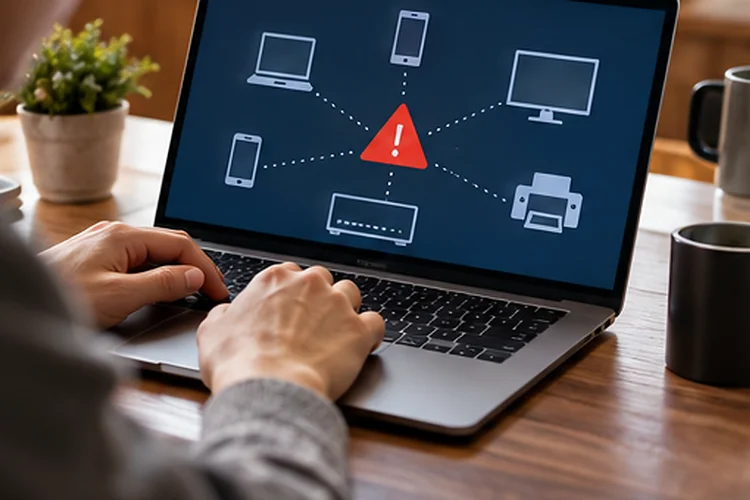
Your phone shows full Wi-Fi bars. The router looks normal. Other devices are sitting only a few feet away from the access point.
Yet one laptop suddenly says “Connected, no internet,” another device keeps disconnecting, and a smart TV refuses to obtain a network connection.
The Wi-Fi signal may not be the problem at all.
One possible culprit is a DHCP conflict.
Understanding DHCP conflicts and their impact on Wi-Fi connectivity is useful because wireless networking involves more than simply establishing a radio connection.
After joining Wi-Fi, your device still needs a valid IP address, subnet mask, default gateway, and usually DNS information before it can communicate properly.
DHCP normally handles that process automatically. When DHCP assignments go wrong, however, devices may end up with duplicate addresses, incorrect network settings, or no usable IP address at all.
The symptoms can easily look like unstable Wi-Fi even when the wireless connection itself is perfectly healthy.
Knowing how DHCP works makes these strange connection problems much easier to diagnose.
What Does DHCP Actually Do?
DHCP stands for Dynamic Host Configuration Protocol.
Its main job is to automatically provide network configuration to devices when they connect.
Instead of manually entering an IP address into every phone, laptop, television, camera, and smart speaker, a DHCP server – usually your router at home – handles the process.
Microsoft describes the basic DHCP exchange as a four-stage process commonly called DORA: Discover, Offer, Request, and Acknowledgement.
A new client effectively asks:
“Is there a DHCP server here?”
The server offers an address, the client requests it, and the server confirms the lease.
For example, your router might assign:
192.168.1.25
to your laptop and:
192.168.1.26
to your phone.
Everything works because each device receives a unique address.
Problems begin when two devices believe they own the same IP address or when more than one DHCP server starts assigning conflicting network information.
What Is a DHCP Conflict?
A DHCP-related conflict usually means there is disagreement over which device should use an IP address.
Imagine your router leases 192.168.1.50 to a tablet.
Later, another device starts using 192.168.1.50 manually as a static address. Now two devices are trying to communicate using the same identity.
The network does not know which device should receive traffic intended for that address.
Fortinet notes that IP conflicts commonly occur when an address inside the DHCP pool is already being used by a statically configured device or is being assigned by another DHCP server.
This can produce intermittent behavior rather than a clean failure.
One device may work for a few minutes, then another becomes reachable. Connections may suddenly disappear and return without any obvious change in Wi-Fi signal strength.
That unpredictability is what makes IP conflicts so annoying.
Static IP Addresses Can Accidentally Create Conflicts
One of the most common causes is a badly planned static IP configuration.
Suppose your router’s DHCP pool runs from:
192.168.1.20 to 192.168.1.200
You manually configure a printer as:
192.168.1.80
The printer works perfectly at first.
But the router does not necessarily know you manually reserved that address. Later, it may legitimately lease 192.168.1.80 to a laptop.
Now both devices have the same IP.
Microsoft specifically recommends checking for statically configured devices whose addresses have not been excluded from the DHCP scope when troubleshooting DHCP problems.
A cleaner solution is to either place static IP addresses outside the DHCP pool or create a DHCP reservation.
A reservation tells the DHCP server to always assign a particular address to a specific device based on its MAC address.
That gives you predictable addressing without risking accidental overlap.
Rogue DHCP Servers Can Cause Even Bigger Problems
Duplicate IP addresses are not the only issue.
Sometimes there are two DHCP servers on the same network.
This commonly happens when someone adds a second router but forgets to disable its DHCP service.
Imagine your main router provides addresses like:
192.168.1.x
while an old router plugged into the same LAN starts handing out:
192.168.0.x
Some devices receive configuration from the main router.
Others receive completely different gateway and DNS settings from the second device.
Suddenly the network looks chaotic.
One phone works. A laptop has no internet. Restarting the laptop fixes it temporarily because this time it happens to receive an address from the correct DHCP server.
Fortinet specifically warns that a rogue router or another DHCP service can assign addresses outside the expected lease database and create conflicts.
In enterprise networks, features such as DHCP snooping are commonly used to prevent unauthorized DHCP servers from handing out configuration.
At home, the fix is usually simpler: make sure only the device acting as your main router is running DHCP unless your network has been intentionally designed otherwise.
Why DHCP Problems Look Like Wi-Fi Problems
This is where troubleshooting gets confusing.
Connecting to Wi-Fi and obtaining network configuration are separate steps.
Your laptop can successfully authenticate to the wireless access point and maintain an excellent 5 GHz signal while DHCP completely fails.
That is why you might see:
Connected, no internet
instead of:
Unable to connect to Wi-Fi
If a client cannot obtain a normal IPv4 lease, some operating systems may assign themselves a link-local address rather than receiving one from the router.
You may see something in the 169.254.x.x range.
That is a strong clue that DHCP did not provide a usable address.
Microsoft’s DHCP troubleshooting guidance recommends verifying that the DHCP client service is operating, that address leases remain available, and that network infrastructure is not blocking the DHCP exchange.
So before resetting Wi-Fi passwords or moving the router, check the device’s IP configuration.
Sometimes the wireless radio is doing its job perfectly.
Lease Problems Can Create Intermittent Connectivity
DHCP addresses are not usually assigned forever.
They are leased for a period of time.
Before the lease expires, the client normally attempts to renew it.
This process allows addresses from devices that leave the network to eventually become available again.
Problems can occur when lease management becomes inconsistent.
For example, Microsoft documents scenarios where an address lease expires and the DHCP server later allocates the same address to another client, while stale records elsewhere in the network still refer to the original device.
Home networks are generally much simpler, but similar symptoms can appear after router replacements, manual static configurations, or incorrectly configured additional DHCP servers.
This is why a problem may seem to “fix itself” after restarting a device.
The restart forces the client to begin a new DHCP negotiation, and it may receive a different address.
That does not necessarily mean the underlying configuraton is fixed.
The conflict may simply be waiting to happen again.
How Devices Detect Duplicate IP Addresses
Modern devices do not blindly accept every IP address offered to them.
They often perform duplicate-address detection before fully using an address.
A client can send an ARP probe to determine whether another device is already responding for that IP.
If another system answers, the client knows there is a conflict.
Fortinet explains that a client can send a DHCPDECLINE after detecting an address already in use, causing the DHCP server to mark that address as conflicted and avoid assigning it again temporarily.
Windows also performs conflict detection during DHCP configuration. Microsoft documents situations where an ARP response causes Windows to reject the offered address and log an IP conflict.
This behavior protects the network, but it can create confusing symptoms.
A user simply sees that their laptop refuses to connect properly.
Behind the scenes, the laptop may actually be protecting itself from using an address that another device already owns.
How to Check for a DHCP Conflict
Start by looking at the network configuration of the affected device.
On Windows, ipconfig /all provides useful information such as the device’s address, default gateway, DHCP server, and lease details.
On phones and tablets, similar information is usually available under the details page for the connected Wi-Fi network.
Compare an affected device with one that works normally.
They should usually be on the same subnet and use the expected default gateway.
For example, if most devices have addresses such as:
192.168.1.30
192.168.1.42
192.168.1.105
but one suddenly has:
192.168.0.57
you may have another DHCP server operating on the network.
Also inspect the DHCP client list in your router.
Look for duplicated addresses, unfamiliar devices, unexpected routers, or static equipment using addresses inside the automatic pool.
TP-Link recommends checking IP address, subnet mask, gateway, and DNS configuration when troubleshooting address conflicts and making sure each device has a unique IP within the topology.
How to Fix DHCP Conflicts Safely
Do not start by factory-resetting everything.
First, confirm that there is only one intended DHCP server.
If you use an old router as an access point, place it into proper Access Point mode or disable its DHCP service manually.
Next, examine static IP addresses.
Move manually assigned addresses outside your DHCP pool or convert them to DHCP reservations.
For example, you might keep:
192.168.1.20–192.168.1.200
for DHCP while reserving a smaller range outside it for intentionally static infrastructure.
After fixing the configuration, renew the affected client’s address.
Restarting the client usually triggers a new DHCP request, but you can also manually release and renew the address on desktop operating systems.
Do not simply increase the DHCP pool if the real problem is duplicate addressing.
A bigger address range helps when you have genuinely exhausted all available leases. It does nothing to solve two DHCP servers fighting over the same network.
When the DHCP Pool Is Simply Too Small
Not every DHCP failure is technically a conflict.
Sometimes the router simply runs out of addresses.
This can happen more easily than expected in homes with dozens of IoT devices.
Phones, tablets, laptops, smart TVs, cameras, speakers, thermostats, plugs, appliances, and guest devices all require addresses.
If the DHCP scope contains only twenty usable addresses and thirty devices attempt to connect, some clients may fail to receive a lease.
Microsoft recommends checking whether available addresses remain in the DHCP scope as one of the first steps when clients cannot obtain network configuration.
Expanding the pool can solve address exhaustion.
For most typical home networks using a /24 subnet, there are more than enough possible host addresses when the DHCP range is configured sensibly.
Also consider lease duration.
A network with frequent guest turnover may benefit from different lease behavior than a home where almost every device is permanent.
DHCP Snooping Matters More on Larger Networks
Home users usually solve rogue DHCP problems manually.
Businesses need stronger protection.
A malicious or accidental DHCP server can provide clients with the wrong default gateway or DNS server, disrupting connectivity across a large network.
Managed switches can use DHCP snooping to distinguish trusted DHCP sources from untrusted ports.
That means an employee cannot simply connect a consumer router and begin handing out addresses to everyone on the same network.
Microsoft’s DHCP troubleshooting documentation also points administrators toward infrastructure features such as DHCP snooping and relay configuration when investigating more complex address-assignment failures.
For a normal home, you probably do not need enterprise-level protections.
But the underlying lesson is useful: DHCP should be controlled.
The more devices and networking equipment you add, the more important it becomes to know exactly which system is responsible for assigning addresses.
DHCP conflicts can make a perfectly healthy Wi-Fi network look unreliable.
Duplicate IP addresses, overlapping static configurations, exhausted address pools, and rogue DHCP servers can leave devices connected to Wi-Fi but unable to communicate properly.
The result may be intermittent internet, disappearing devices, IP conflict warnings, or clients that never receive a valid address.
The best approach is systematic.
Check the affected device’s IP information, compare it with working clients, inspect your router’s DHCP leases, and make sure only one intended DHCP server is operating. Keep static addresses outside the automatic pool or use reservations instead.
If your Wi-Fi signal is strong but connectivity keeps behaving strangely, look beyond the radio connection. A small DHCP misconfiguraton can cause surprisingly big network problems.
Related Articles