Fixing Wi-Fi Authentication Failures on Modern Wireless Networks
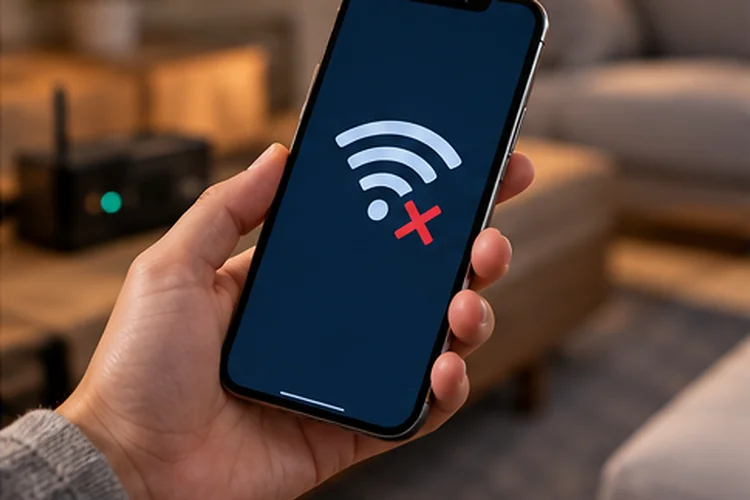
Few Wi-Fi problems are more confusing than entering a password you know is correct and still seeing messages like “Authentication failed,” “Incorrect password,” or “Unable to join network.”
The obvious assumption is that the password must be wrong. Sometimes it is, but modern Wi-Fi authentication involves much more than matching a string of characters.
Your phone or laptop must agree with the access point on a security protocol, encryption method, and authentication process before normal network traffic can begin.
WPA2, WPA3, saved connection profiles, firmware, wireless drivers, MAC-based access rules, and even certificates can all interfere with that process.
That is why fixing Wi-Fi authentication failures on modern wireless networks requires a systematic approach.
A home network using WPA2 or WPA3 Personal will have different failure points from a company network using WPA2/WPA3 Enterprise with 802.1X and RADIUS.
The good news is that authentication failures usually leave clues. Once you identify whether one device or every device is affected, the list of possible causes becomes much shorter.
Start With the Password, but Do Not Stop There
The Wi-Fi password is still the most obvious place to begin.
Passwords are case-sensitive, so HomeNetwork123 and homenetwork123 are different credentials. It is also easy to confuse similar characters such as uppercase O, lowercase o, and zero.
TP-Link lists password mismatch as one of the most common causes of Wi-Fi authentication errors. It also notes that a router PIN shown during setup is not necessarily the same thing as the wireless network password.
If several devices can connect successfully using the same password, however, repeatedly retyping it on the failing device probably will not solve the real issue.
That is your first useful diagnostic clue.
When every device suddenly fails authentication, investigate the router or access point.
When only one device fails, focus first on that device’s saved profile, operating system, network driver, and security compatibility.
Forget the Network and Create a Fresh Wi-Fi Profile
Phones and computers remember more than just the network password.
A saved Wi-Fi profile can include the SSID, security mode, encryption settings, and information learned when the device previously connected.
Problems can appear when the router configuration changes but the device continues trying to use outdated settings.
For example, suppose your router originally used WPA2 Personal and you later switched it to WPA3. An older saved profile may no longer match the new authentication configuration.
The easiest fix is often to forget the Wi-Fi network on the affected device and reconnect from scratch.
Apple specifically recommends forgetting and rejoining networks after significant router security changes so devices can use the new settings.
This simple step can resolve surprisingly stubborn authentication failures.
If possible, restart the wireless device after forgetting the network. Then reconnect manually and enter the password again rather than relying on an old credential stored in the operating system.
Check WPA2 and WPA3 Compatibility
Security compatibility has become increasingly important as WPA3 adoption grows.
WPA3 Personal provides stronger protection than older Wi-Fi security methods, but not every legacy client supports it.
Apple currently recommends WPA3 Personal when all devices support it, or WPA2/WPA3 Transitional mode when older devices need to remain compatible. WPA2 Personal using AES is still a reasonable fallback when WPA3 cannot be used.
Imagine upgrading your router and enabling WPA3-only mode.
Your newer Wi-Fi 6 laptop connects without a problem, but an older smart TV suddenly reports an authentication error.
The password may be completely correct. The older television simply may not understand the required authentication protocol.
When Transitional Mode Helps
WPA2/WPA3 Transitional mode allows compatible devices to use WPA3 while older clients can still authenticate with WPA2.
This can be a practical choice in homes containing a mixture of new and old hardware.
Avoid falling all the way back to outdated standards such as WEP or WPA with TKIP just to accommodate an ancient device. Apple warns that those older security methods are deprecated and can reduce network security and reliability.
Replacing one old Wi-Fi adapter is usually better than weakening the entire network.
Make Sure Router Security Settings Match Across Every Band
Modern routers often operate on multiple bands, usually 2.4 GHz and 5 GHz, with 6 GHz added on Wi-Fi 6E and Wi-Fi 7 equipment.
Authentication settings should be configured carefully across them.
One band could accidentally use WPA2/WPA3 while another uses WPA3-only security. A device that automatically switches between bands may then behave inconsistently.
You might notice that your laptop connects when close to the router but fails after moving farther away because it starts using a different band.
Apple recommends applying security and compatibility settings consistently across the router’s access points and frequency bands.
For troubleshooting, temporarily assigning seperate SSIDs can help.
For example:
Home-2.4
Home-5G
Connect the problematic client to each band individually.
If authentication succeeds on one but not the other, you have narrowed the issue to a particular radio or security configuration.
You can merge the network names again after identifying the problem.
Check MAC Filtering and Device Access Controls
Sometimes authentication appears to fail even though the password and security standard are correct.
The router may simply be refusing that device.
Many routers include MAC filtering, access control, parental controls, or blocked-device lists. These features allow administrators to restrict which clients can connect.
The complication is that modern phones and computers increasingly use randomized or private MAC addresses for privacy.
That can confuse older access-control rules.
A router might contain an approved MAC address for your phone while the phone is now presenting a different randomized address.
Apple recommends against relying on MAC filtering for security and notes that private addressing can change the MAC address presented by a device.
If one specific device suddenly stops authenticating, inspect your router’s connected-device list and access-control configuration.
Temporarily disabling MAC filtering can be a useful diagnostic test.
Do not permanently weaken authentication just to solve the problem. WPA2 or WPA3 should remain the real security mechanism.
Update Router Firmware and Wireless Drivers
Authentication depends on software at both ends of the connection.
The router runs firmware that implements WPA authentication, encryption, radio behavior, and client compatibility. Your laptop or phone has its own operating system and wireless driver performing the other half of that process.
A bug on either side can break authentication.
Microsoft recommends updating router firmware when correct Wi-Fi credentials continue producing authentication errors.
For laptops, update the wireless adapter driver as well.
This becomes especially important when a network recently changed from WPA2 to WPA3, or when connecting older computers to newer Wi-Fi 6 or Wi-Fi 7 access points.
Check for operating system updates too.
Modern security protocols evolve, and software updates frequently contain networking fixes that are never obvious from the user’s perspective.
Avoid installing random drivers from unofficial download sites. Use the computer manufacturer, wireless chipset manufacturer, or operating system’s official update mechanism.
Outdated firmare or drivers can create problems that look exactly like an incorrect password.
Enterprise Wi-Fi Adds 802.1X and RADIUS to the Process
Authentication becomes more complex on business, university, and enterprise networks.
Instead of one shared Wi-Fi password, these environments often use 802.1X authentication with a RADIUS server.
Users may authenticate with usernames and passwords, certificates, or a combination of credentials depending on the EAP method being used.
This introduces several new failure points.
The access point might be working normally while the RADIUS server rejects the client. The username might be correct but the authentication policy does not allow that user group.
Certificates add another layer.
Microsoft’s 802.1X troubleshooting guidance identifies certificate problems – including expiration, validation failures, incorrect trust chains, and revocation-check problems – as common causes of enterprise authentication failures.
Pay Attention to Certificate Errors
If an enterprise Wi-Fi connection suddenly stops working after months of normal operation, check certificate expiration dates.
Also confirm that the client trusts the certificate authority that issued the RADIUS server’s certificate.
Microsoft recommends keeping server certificate validation enabled rather than disabling it simply to get a connection working.
Ignoring certificate validation may appear to solve the immediate problem while weakening the security of the authentication process.
Enterprise administrators should instead check the EAP method, RADIUS logs, certificate chain, system clock, and client authentication events.
Reboot Carefully Before Factory Resetting Anything
Restarting equipment can still be useful.
Reboot the affected client first.
If many devices are failing, restart the router or access point. This clears temporary states and can recover from software problems without destroying the network configuration.
A factory reset is different.
It removes Wi-Fi names, passwords, ISP configuration, reservations, security settings, and other custom options. That makes it a poor first troubleshooting step.
Microsoft includes router reset as a possible authentication troubleshooting option, but updating firmware and confirming credentials are also important steps.
If you eventually perform a factory reset, configure the network gradually.
Start with one SSID and a standard WPA2/WPA3 configuration. Confirm clients can authenticate before restoring guest networks, custom VLANs, access controls, band steering, and other advanced features.
This makes it much easier to identify which setting actually caused the failure.
Use the Pattern of Failure to Find the Cause Faster
The number of affected devices often tells you where to look.
If one device fails, forget its saved profile, update its software, and check its security compatiblity.
If only old devices fail, investigate WPA3 or newer security settings.
If every device fails, verify the router password, firmware, security configuration, and access point operation.
If employees fail but home-style clients work, investigate 802.1X, RADIUS, credentials, certificates, and enterprise authentication policies.
If authentication fails only on a particular frequency band, test that radio seperately.
This pattern-based approach is much faster than randomly changing router settings.
Authentication is a negotiation. Troubleshooting becomes easier once you identify which side of that negotiation stopped agreeing.
Wi-Fi authentication failures are not always caused by a bad password.
Saved network profiles, incompatible WPA2/WPA3 settings, MAC filtering, outdated firmware, wireless drivers, and enterprise certificate problems can all prevent a device from joining an otherwise healthy network.
Start simple: confirm the password and forget the saved network. Then check security compatibility, individual Wi-Fi bands, access controls, and software updates.
For enterprise networks, go deeper into 802.1X, RADIUS, EAP settings, and certificate validation.
Most importantly, use the pattern of affected devices as a clue. If one client fails, investigate the client. If everything fails, investigate the network.
Before factory-resetting your router, work through those layers methodically. You will usually find the real cause faster – and avoid creating extra problems along the way.
Related Articles