How to Troubleshoot Router WAN Connection Failures Systematically
Your Wi-Fi signal can look perfectly normal while the internet is completely unavailable. Your phone may show full signal bars, your laptop can still connect to the router, and you might even be able to open the router’s settings page.
Yet nothing online works.
That is usually a clue that the problem may be on the WAN, or Wide Area Network, side of the router rather than the local Wi-Fi network.
Learning how to troubleshoot router WAN connection failures systematically can save a lot of unnecessary resetting and configuration changes.
Instead of randomly replacing cables, changing DNS servers, rebooting everything, and hoping for the best, you can test each layer in a logical order.
The goal is to answer a few simple questions: Is the physical WAN link active? Did the router receive an IP address? Is authentication working? Can the modem reach the ISP? And is the problem actually DNS rather than internet connectivity?
Once you know where communication stops, the solution usually becomes much easier to find.
Start With the Physical WAN Connection
Before touching advanced settings, check the cable.
It sounds obvious, but a loose Ethernet connector, damaged cable, incorrect port, or failed WAN interface can prevent everything else from working.
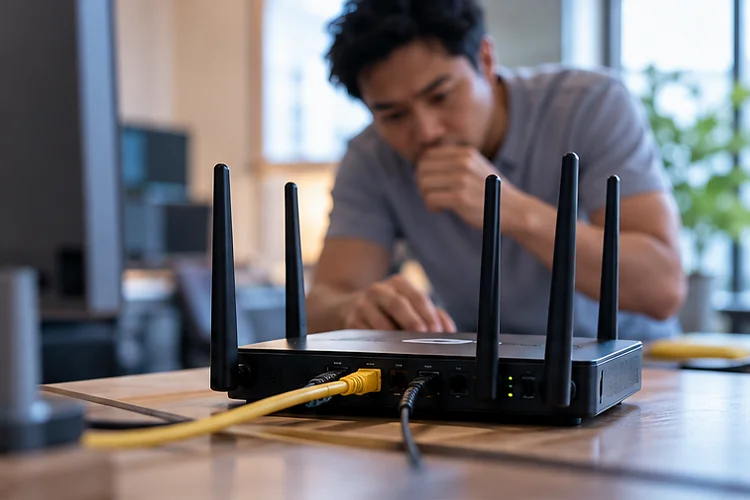
Your modem or optical network terminal should normally connect to the port labeled WAN, Internet, or sometimes a globe icon on the router.
Check the corresponding status light. If the WAN light is completely off, the router may not be detecting a physical Ethernet link.
TP-Link recommends confirming that the Ethernet cable is properly seated and replacing it with a known-working Cat5e or better cable when a router reports that its WAN port is unplugged.
Try a different cable before assuming the router is broken.
Some routers also let you view WAN port negotiation status. If one device expects 1 Gbps while another has an unusual auto-negotiation problem, manually selecting a lower link speed can sometimes help diagnose the issue.
The main point is simple: if there is no physical link, changing DNS or DHCP settings will not solve anything.
Check Whether the Router Has a WAN IP Address
Once the physical connection looks good, log in to your router’s administration interface and find the Internet or WAN status page.
Look for the WAN IPv4 address.
1. If the WAN Address Is 0.0.0.0
An address such as 0.0.0.0 usually means the router has not successfully received an IP address from the upstream device or ISP.
TP-Link uses this distinction as a key troubleshooting step: an invalid WAN address points toward the modem connection, WAN configuration, or ISP-side address assignment rather than a simple Wi-Fi problem.
Possible causes include an incorrect connection type, failed DHCP lease, PPPoE authentication failure, modem binding, or an upstream outage.
2. If the Router Has a Valid WAN Address
A valid WAN IP changes the diagnosis.
NETGEAR similarly recommends checking whether the Internet port has received an IP address when the router itself is accessible but the internet is not.
If the router has an address, gateway, and DNS information but websites still fail, the physical WAN connection is probably working.
At that point, investigate DNS, routing, ISP reachability, or router software rather than repeatedly reconnecting cables.
Confirm the Correct Internet Connection Type
Routers do not all connect to ISPs in the same way.
Your provider may use Dynamic IP/DHCP, PPPoE, Static IP, or another configuration.
Selecting the wrong type can leave the router permanently waiting for a connection.
TP-Link specifically recommends confirming the connection type with the ISP when a router cannot establish internet access.
1. Dynamic IP or DHCP
Many cable and fiber connections simply assign an address automatically.
In this case, the router sends a DHCP request and waits for an IP address, default gateway, and other configuration.
If this process fails, you might see 0.0.0.0 as the WAN address.
Releasing and renewing the WAN DHCP lease may help. Power cycling the modem or ONT can also matter because some upstream equipment remembers the previously connected device.
2. PPPoE
PPPoE connections require a username and password supplied by the ISP.
One mistyped character can prevent authentication.
TP-Link’s PPPoE troubleshooting documentation notes that incorrect credentials can allow the initial PPPoE discovery stage to succeed while authentication fails later in the session.
Check capitalization carefully because credentials can be case-sensitive.
If your router reports an authentication failure, verify the username and password with your ISP before changing unrelated settings.
Test the Modem or ONT Without the Router
This is one of the most useful tests in the entire troubleshooting process.
Disconnect the router and connect a computer directly to the modem or ONT when your ISP setup supports it.
Then check whether the computer gets internet access.
If the direct connection also fails, spending another hour adjusting your router probably will not help. The modem, ONT, fiber/cable/DSL connection, or ISP service may be the real problem.
Both TP-Link and NETGEAR recommend direct-modem testing as a way to separate router failures from upstream internet problems.
If the computer works directly through the modem but the router does not, the problem is now much more likely to involve the router’s WAN configuration.
One warning: some ISPs bind service to a device’s MAC address or require the modem to be restarted when a new device is connected.
So after switching between a computer and router, a proper modem power cycle may be necessary.
Separate DNS Failure From Complete Internet Failure
A DNS problem can look surprisingly similar to a dead internet connection.
DNS translates names such as example.com into IP addresses.
If DNS fails, websites may stop loading even though packets can still travel across the internet.
When your WAN connection fails, first check whether the router still has a valid IP address and gateway.
Then test connectivity using an IP address rather than a domain name.
If IP-based connections work while names do not, DNS becomes a strong suspect.
TP-Link includes manually configuring DNS servers among its recommended troubleshooting steps when the router has a WAN IP but still cannot reach websites normally.
You can temporarily test a well-known public resolver to confirm the diagnosis.
However, avoid assuming every connection problem is DNS. If your router has no WAN address at all, changing DNS is unlikely to fix the underlying failure.
Watch for LAN and WAN Subnet Conflicts
Another easy-to-miss problem occurs when the router’s WAN and LAN networks use overlapping IP ranges.
Suppose your modem-router uses:
192.168.1.1
and your second router also creates a LAN using:
192.168.1.1/24
The downstream router may struggle to distinguish its local network from the upstream network.
Changing its LAN range to something different, such as 192.168.10.0/24, can resolve the conflict.
This situation is especially common when someone installs a new router behind an ISP gateway.
A private WAN address by itself is not necessarily wrong. It may simply mean the ISP gateway is also acting as a router, creating a double-NAT setup.
The important issue is whether the WAN and LAN address ranges overlap.
Check these values seperately instead of assuming any private WAN IP automatically indicates a failure.
Reboot the Network in a Logical Order
“Turn it off and on again” sounds simplistic, but restart order can matter.
Modems and ISP equipment sometimes remember the connected router or Ethernet MAC address.
A sensible recovery sequence is to turn off the modem/ONT and router, reconnect the WAN cable, power the upstream device back on, let it establish service, and then start the router.
Vendor procedures vary somewhat by connection type, so follow your modem or ISP documentation when available.
TP-Link’s support material specifically recommends power cycling the modem and router when a WAN address exists but internet conectivity is not working normally.
After rebooting, look at the WAN address again.
If it changes from 0.0.0.0 to a valid address, you have learned something important: the router can obtain a lease, and the issue may have involved session state or upstream device binding.
Use Router Logs Instead of Guessing
Router logs are often ignored, but they can tell you exactly where a connection fails.
Look for messages related to:
- DHCP timeout or lease failure
- PPP authentication failure
- WAN link down/up events
- DNS errors
- Ethernet negotiation
- Repeated reconnect attempts
For PPPoE connections in particular, system logs can distinguish a physical discovery failure from an authentication error.
TP-Link documents how repeated PPPoE discovery attempts can indicate that the modem is not being reached, while an authentication error points toward incorrect credentials.
That information is far more useful than randomly changing ten settings.
Record the exact time when the failure occured and compare it with the router log. Repeated WAN-down events at the same moment can reveal a physical or upstream problem.
Update Firmware Before Performing a Factory Reset
If the hardware, WAN configuration, and ISP connection appear correct but failures continue, check your router firmware.
Firmware updates can fix stability bugs, compatibility problems, security vulnerabilities, and WAN-related issues.
TP-Link recommends updating router firmware as part of its troubleshooting process for unstable internet connections.
Use firmware specifically intended for your exact router model and hardware revision.
A factory reset should normally come later, not first.
Resetting deletes configuration and can create additional work without fixing a damaged cable, ISP outage, failed PPPoE account, or faulty modem.
If you eventually reset the router, configure only the basic internet connection first.
Confirm that WAN connectivity works before restoring advanced QoS, VPN, VLAN, port forwarding, custom DNS, or firewall rules.
That approach helps identify whether a previous configuration was responsible for the failure.
Know When It Is Time to Contact Your ISP
Eventually, troubleshooting reaches the edge of your network.
If a computer connected directly to the modem cannot access the internet, the modem or ISP becomes the main suspect.
Before contacting support, collect useful information.
Note whether the modem or ONT connection lights are normal, whether the router receives a WAN IP, when the problem started, whether it is constant or intermittent, and whether direct-modem testing works.
For PPPoE service, record any authentication error shown by the router.
For DHCP service, mention if the router repeatedly remains at 0.0.0.0.
Providing this information is much more useful than simply saying, “My Wi-Fi doesn’t work.”
It tells the ISP that you have already isolated the local wireless network and gives support a clearer starting point for checking the line, account, DHCP service, or upstream equipment.
Troubleshooting a router WAN failure is much easier when you work from the physical layer upward.
Start with the WAN cable and link status. Then check whether the router receives an IP address, confirm the correct DHCP, PPPoE, or static configuration, and test the modem or ONT directly.
If a valid WAN address exists, investigate DNS and routing rather than assuming the connection is completely dead. Router logs can also reveal authentication failures, lost links, and repeated reconnection attempts.
Update firmare before resorting to a factory reset, and change only one major setting at a time.
The next time your router says “No Internet,” resist the urge to randomly reboot everything. Follow the connection step by step, find exactly where communication stops, and fix that layer first.
Related Articles