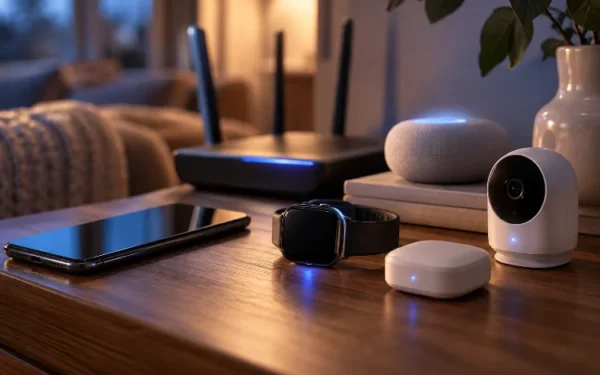
Wi-Fi 6 Router Optimization for a Faster Multi-Device Smart Home
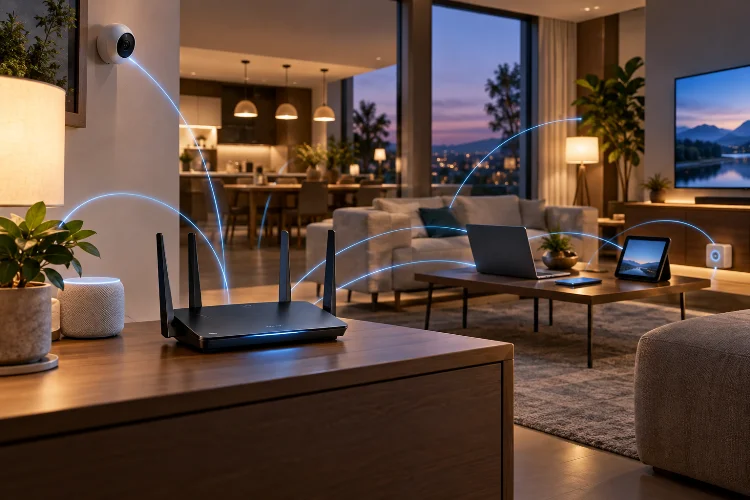
A modern smart home can quietly become a networking nightmare.
Your laptop is downloading files, two TVs are streaming, a game console is online, security cameras are uploading footage, and dozens of smart bulbs, speakers, plugs, and sensors are exchanging small amounts of data in the background.
Even if you have a fast internet plan, all those devices still need to share the same wireless network. That is why upgrading to Wi-Fi 6 is only half the job. Proper Wi-Fi 6 router optimization for multi-device smart home networks can make an equally big difference.
Wi-Fi 6, technically known as 802.11ax, was designed to handle crowded wireless environments more efficiently. Features such as OFDMA, MU-MIMO, Target Wake Time, and improved scheduling help a router serve many devices without simply forcing them to wait in line.
But those technologies work best when your router is configured and positioned correctly. A few practical adjustments can turn an average Wi-Fi 6 setup into a much smoother smart-home network.
Start With Better Router Placement
Before changing advanced settings, check where your router actually sits.
A powerful Wi-Fi 6 router hidden inside a cabinet in the corner of your house can perform worse than a modest router placed properly. Walls, metal objects, furniture, appliances, and distance all weaken wireless signals.
For better coverage, place the router somewhere central, elevated, and relatively open. NETGEAR recommends a central location and warns that walls, metal cabinets, microwaves, and similar obstacles can reduce signal strength.
Avoid putting the router on the floor, behind a television, or inside a closed cupboard just because it keeps the cables out of sight.
If your smart home covers multiple floors or a large property, one router may simply not be enough. In that case, adding strategically positioned access points or a Wi-Fi 6 mesh system can provide better results than buying a single ultra-powerful router.
Use 2.4 GHz and 5 GHz for the Right Devices
One of the easiest ways to optimize a crowded network is to stop treating every device the same.
1. Keep Low-Bandwidth Smart Devices on 2.4 GHz
The 2.4 GHz band generally offers better range and wall penetration, which makes it useful for smart plugs, bulbs, thermostats, sensors, doorbells, and other IoT equipment.
Many of these devices only transmit tiny amounts of data anyway. They do not need the higher potential speed of 5 GHz.
The downside is congestion. The 2.4 GHz spectrum has fewer non-overlapping channels and is more vulnerable to interference from neighboring Wi-Fi networks and other wireless equipment. Wider channels can make that situation even worse.
2. Give High-Bandwidth Devices the 5 GHz Band
Laptops, smart TVs, phones, game consoles, and streaming devices usually benefit more from 5 GHz.
This band provides more channel options and can support significantly higher data rates, although its range is shorter. Moving bandwidth-heavy devices to 5 GHz also leaves more breathing room for your IoT equipment.
Some routers offer band steering or Smart Connect, which automatically directs clients toward a more suitable band. It can work well, although certain older smart-home products may behave better when 2.4 GHz is available seperately.
Make Sure OFDMA and MU-MIMO Are Enabled
Two of the most useful Wi-Fi 6 technologies for a crowded home are OFDMA and MU-MIMO.
OFDMA divides a Wi-Fi channel into smaller Resource Units. Instead of giving the whole channel to one device for every transmission, the router can serve multiple Wi-Fi 6 clients more efficiently.
This is especially helpful for IoT devices because many of them exchange small packets rather than huge files. Cisco notes that OFDMA can improve efficiency and reduce latency while preventing low-data-rate IoT clients from consuming disproportionate network resources.
MU-MIMO works differently. It uses multiple spatial streams so compatible devices can communicate simultaneously rather than always waiting for one another.
Wi-Fi 6 supports both uplink and downlink multi-user technologies, giving routers more options for managing busy wireless traffic.
Most consumer routers enable these features automatically, but it is worth checking the advanced wireless settings. Manufacturers sometimes provide manual OFDMA or MU-MIMO controls.
Do Not Automatically Choose the Widest Channel
A bigger number does not always mean better Wi-Fi.
Wi-Fi 6 routers may offer 20, 40, 80, or even 160 MHz channel widths depending on the band and model. Wider channels can provide higher peak speeds because they use more spectrum.
However, they also occupy more wireless space.
In a crowded neighborhood, forcing 160 MHz may sometimes cause more interference than using a narrower 80 MHz channel. On 2.4 GHz, 20 MHz is often the safer choice when many nearby networks are present because overlapping channels can reduce overall perfomance.
For most smart homes, stability matters more than achieving the highest theoretical number shown on the router box.
Start with automatic channel selection if your router handles it well. If you regularly experience interference or random slowdowns, use a Wi-Fi analyzer to check nearby networks and experiment with cleaner channels.
Use QoS for Devices That Actually Need Priority
Not every connected device needs instant access to bandwidth.
A smart light bulb can wait a fraction of a second without anyone noticing. A video meeting, cloud gaming session, or VoIP call is far more sensitive to delays.
Quality of Service, or QoS, lets some routers prioritize certain devices or types of traffic. For example, you could prioritize a work laptop and gaming PC over a television downloading a large system update.
TP-Link describes QoS as a way of assigning priority to devices or applications to help them operate with lower latency.
Do not go overboard, though.
Creating complicated priority rules for every conencted gadget can make troubleshooting harder. Start by prioritizing only genuinely latency-sensitive devices and leave everything else at normal priority.
Take Advantage of Target Wake Time
Smart-home devices are not always actively transmitting.
A sensor might only need to communicate occasionally. Without efficient scheduling, its wireless radio may still wake frequently to check whether data is waiting.
Wi-Fi 6 introduced Target Wake Time, commonly called TWT. It allows compatible devices and the access point to coordinate when the device should wake up to communicate.
That can reduce unnecessary wireless activity and potentially extend battery life in supported devices. Intel describes TWT as a mechanism that lets routers and clients coordinate sleep and wake periods more efficiently.
This feature is particularly interesting for battery-powered IoT products.
You usually do not need to manually schedule every device. If both your router and client support TWT, the feature is typically handled in the background.
Keep Firmware and Smart-Home Devices Updated
Optimization is not only about speed.
Your router is the gateway between dozens of devices and the internet, so security should be part of your network setup.
Install firmware updates when your router manufacturer releases them. Updates can fix bugs, improve stability, patch vulnerabilities, and occasionally improve compatibility with wireless devices.
CISA recommends keeping internet-connected systems updated with current security patches, while NSA guidance emphasizes securing home routers and using network segmentation where appropriate.
Use WPA2 or preferably WPA3 where your devices support it, and replace default administrator passwords.
For a larger smart home, consider putting untrusted IoT devices on a guest network or dedicated IoT network when your router supports isolation. That way, a vulnerable camera or bargain smart plug does not necessarily have direct access to your personal computers and storage devices.
Just confirm that isolation does not break local-control features your smart-home platform requires.
Know When It Is Time to Add Mesh Wi-Fi
There is a point where tuning one router stops helping.
If your home has several floors, reinforced concrete walls, long hallways, or large dead zones, poor coverage may be the real problem rather than router settings.
A Wi-Fi 6 mesh system uses multiple nodes to extend wireless coverage throughout the property. Some mesh products also support Ethernet backhaul, allowing nodes to communicate over a wired connection instead of sharing wireless capacity for backhaul traffic.
That can be especially valuable in a busy smart-home enviroment.
For example, cameras on one side of the house, televisions upstairs, and dozens of IoT devices downstairs no longer have to depend on one distant access point.
Whenever possible, use Ethernet for fixed high-bandwidth equipment such as desktop PCs, TVs, NAS devices, consoles, and mesh backhaul. Every device moved to wired Ethernet frees wireless airtime for equipment that genuinely needs Wi-Fi.
A Wi-Fi 6 router gives you the technology needed to handle a modern smart home, but good hardware alone does not guarantee a great network.
Start with proper router placement, separate device workloads between 2.4 GHz and 5 GHz, and make sure features such as OFDMA and MU-MIMO are available.
Use sensible channel widths, prioritize latency-sensitive traffic with QoS, keep firmware updated, and take advantage of Target Wake Time when supported.
If coverage remains inconsistent, adding Wi-Fi 6 mesh nodes or wired access points may be more effective than endlessly tweaking one router.
The goal is not simply to achieve the highest speed-test result. It is to create a stable network where dozens of smart devices can coexist without getting in each other’s way.
Check your router settings today and optimize the network around how your home actually uses Wi-Fi.
Related Articles