How to Choose a Router for Gigabit and Multi-Gigabit Internet
Upgrading from a 300 Mbps connection to Gigabit Internet sounds simple. Your ISP increases the speed, you plug in your existing router, and everything should instantly become faster.
Unfortunately, networking rarely works that way.
A 1 Gbps, 2 Gbps, or 5 Gbps internet plan is only as fast as the slowest part of your home network. Your modem or ONT, router ports, Ethernet cables, Wi-Fi standard, laptop adapter, switch, and even router processing power can all create bottlenecks.
That is why knowing how to choose a router for Gigabit and Multi-Gigabit Internet matters more than simply buying the model with the biggest wireless speed printed on the box.
For Gigabit service, a modern Wi-Fi 6 router can still be more than enough for many homes. Once your connection moves beyond 1 Gbps, however, multi-gig WAN and LAN ports become increasingly important.
The goal is not just to connect to your fast internet plan. It is to make sure your devices can actually use it.
Start With the WAN Port Speed
The WAN port is where your internet connection enters the router.
This is the first specification you should check.
A router with only a 1 Gigabit Ethernet WAN port can become a hard bottleneck if your ISP provides 2 Gbps service. Even if the router advertises several gigabits of theoretical Wi-Fi speed, traffic entering through that WAN port is still limited by the physical interface.
For a standard 1 Gbps connection, Gigabit Ethernet may be acceptable. However, a router with a 2.5G WAN port gives you more headroom and can help avoid the limitations of a standard 1G interface.
For internet plans above 1 Gbps, look for at least:
- 2.5G WAN for 1.2 Gbps, 2 Gbps, or 2.5 Gbps plans
- 5G or 10G WAN for faster multi-gig services
- 10G WAN/LAN if you expect to keep the router for several years
TP-Link notes that multi-gig connections typically refer to 2.5G, 5G, and 10G networking, while NETGEAR’s multi-gig ports can automatically operate at several lower Ethernet speeds for compatibility.
That backward compatibility is useful because your newer multi-gig router can still work with older Gigabit hardware.
Do Not Forget About LAN Port Speeds
A fast WAN port solves only half the problem.
Imagine buying a router with a 2.5G internet port but discovering that every LAN port is limited to 1 Gbps. Your router can receive more than one gigabit from the ISP, but one wired desktop still cannot exceed its Gigabit Ethernet connection.
That may be perfectly fine if several devices are sharing the connection.
For example, a 2 Gbps internet plan could theoretically serve two wired computers at close to 1 Gbps each through different Gigabit LAN ports.
But if you want a single PC, NAS, workstation, or server to exceed 1 Gbps, you also need a multi-gig LAN port.
Ideally, a router for serious multi-gig use should have at least two multi-gig interfaces: one for WAN and another for LAN.
Higher-end models may include several 2.5G ports or a combination of 2.5G and 10G ports. That configuration is especially useful for NAS storage, high-speed switches, media servers, and wired backhaul.
Wi-Fi 6, Wi-Fi 6E, or Wi-Fi 7?
Wireless generation matters, but it needs to be viewed realistically.
1. Wi-Fi 6 Is Still Good for Gigabit Internet
A capable Wi-Fi 6 router can work very well with a Gigabit connection.
Wi-Fi 6 supports technologies such as OFDMA, MU-MIMO, 1024-QAM, and channel widths up to 160 MHz. Intel lists certain 2×2 Wi-Fi 6 adapters with theoretical maximum link rates of up to 2.4 Gbps.
That does not mean a laptop will download from the internet at 2.4 Gbps.
Wi-Fi link rates include protocol overhead, and real-world throughput is affected by distance, interference, channel width, router hardware, and the client’s wireless adapter.
Still, Wi-Fi 6 is often enough if your internet plan is around 1 Gbps and your priority is reliable performance rather than maximum benchmark numbers.
2. Wi-Fi 6E Adds the 6 GHz Band
Wi-Fi 6E extends Wi-Fi 6 into the 6 GHz spectrum.
This can provide cleaner channels in locations where 5 GHz is crowded. The trade-off is that higher-frequency signals generally have less range through walls.
For a fast connection in the same room or nearby rooms, Wi-Fi 6E can perform very well.
3. Wi-Fi 7 Makes More Sense for Multi-Gig Wireless
If you are buying a premium router for a 2 Gbps or faster connection, Wi-Fi 7 becomes much more interesting.
Wi-Fi 7 supports features such as 320 MHz channels, 4096-QAM, and Multi-Link Operation. Intel says 320 MHz channels and 4K QAM can provide substantially higher peak throughput than Wi-Fi 6 or Wi-Fi 6E, while MLO allows compatible devices to use multiple frequency links.
Some modern 2×2 Wi-Fi 7 adapters are rated for theoretical link speeds around 5.8 Gbps.
Again, that is not a promise of 5.8 Gbps internet throughput, but it gives the wireless connection more room to take advantage of multi-gigabit service.
Check What Your Devices Can Actually Handle
A powerful router cannot upgrade the networking hardware inside your laptop.
This is one of the most overlooked parts of buying a new router.
If your computer has a 1 Gigabit Ethernet adapter, connecting it to a 10G router port does not make the computer 10G-capable. Likewise, a Wi-Fi 5 phone cannot suddenly use Wi-Fi 7 features.
Your client device always matters.
Before spending extra money on a high-end router, check the devices you use most often.
A desktop used for large downloads may benefit from a 2.5G or 10G network adapter. A newer laptop with Wi-Fi 7 can take better advantage of a modern wireless router than an older machine limited to Wi-Fi 5.
TP-Link also recommends matching multi-gig client hardware to the rest of the network, including upgrading a computer’s network interface when necessary.
The fastest network is only as fast as the capabilty of each link in the chain.
Make Sure the Router Has Enough Processing Power
Router performance is not determined entirely by port speed.
The router also has to process packets, perform NAT, manage firewall rules, handle wireless traffic, and potentially run features such as VPNs, parental controls, traffic monitoring, or QoS.
A router may physically include a 2.5G port but still struggle to maintain full multi-gig throughput when several demanding features are enabled.
This is particularly relevant with VPN traffic.
Encryption requires additional processing, so VPN throughput can be much lower than ordinary NAT routing speed depending on the hardware and protocol.
Look for reviews that test actual WAN-to-LAN throughput rather than relying entirely on manufacturer wireless ratings.
A router labeled “BE19000” or “AX6000” is not telling you the speed one device will receive from your ISP. Those numbers usually represent combined theoretical wireless rates across multiple bands.
Real-world routing performace is a separate question.
Understand Ethernet Cable Requirements
The good news is that moving beyond 1 Gbps does not always require rewiring your entire house.
The IEEE 802.3bz standard introduced 2.5GBASE-T and 5GBASE-T specifically to provide faster Ethernet over cabling originally designed around Gigabit networking.
Both TP-Link and NETGEAR note that 2.5G connections can operate over existing Cat5e cabling in many installations.
For higher speeds, cable quality becomes more important.
Cat6 is generally a better choice for new runs, while Cat6a is a safer option when you want 10G Ethernet over longer distances.
The practical lesson is simple: do not assume the router is responsible when a multi-gig link negotiates at a lower speed.
Your cable, wall jack, switch, network card, and router port all need to support the target link rate.
One weak component can force the entire connection to negotiate seperately at a slower speed.
Think About Coverage Before Maximum Speed
A 10 Gbps router is useless if your bedroom receives a weak signal.
Wireless performance drops as distance and obstacles increase. Thick walls, concrete, metal surfaces, neighboring networks, and poor router placement can have a larger effect on your daily experience than upgrading from one premium router to another.
For a small or medium-sized home, one centrally located router may be sufficient.
For a large or multi-story property, consider a mesh system or several wired access points.
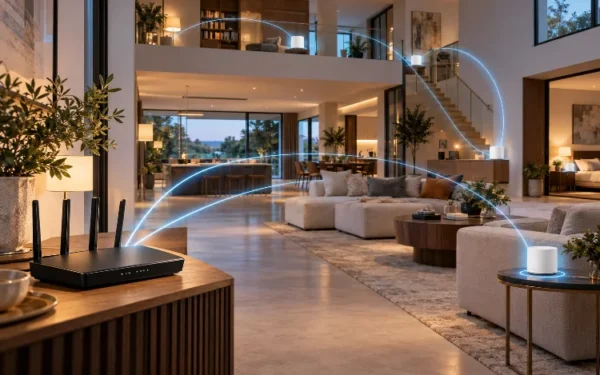
This becomes especially important with multi-gig internet because your connection may be extremely fast near the main router but much slower on the other side of the house.
If you use mesh Wi-Fi, check the backhaul.
A wired 2.5G Ethernet backhaul can provide much more consistent performance than forcing every mesh node to communicate wirelessly. Modern Wi-Fi 7 mesh systems may also use high-capacity wireless backhaul, but wired Ethernet remains attractive when installation is practical.
Good coverage beats impressive specifications in a poor enviroment.
Consider the Rest of Your Multi-Gig Network
The router is only one component.
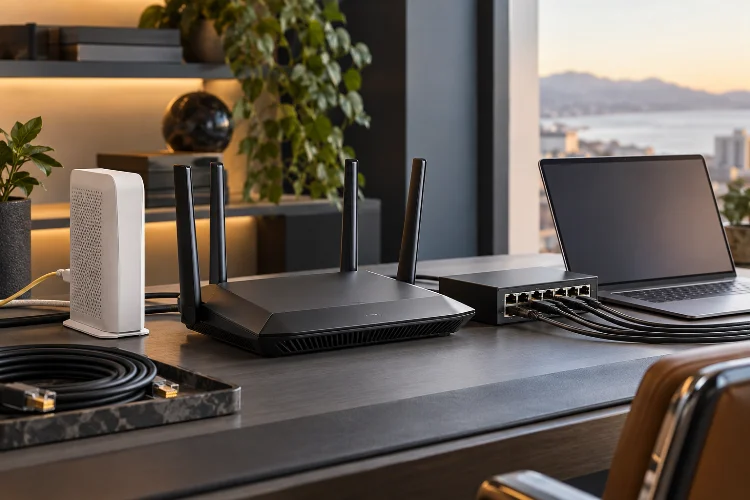
If you want multiple wired devices running above 1 Gbps, you may need a multi-gig Ethernet switch.
For example, imagine a 5 Gbps fiber connection entering a router through a 10G WAN port. The router then connects to a 10G switch, which serves a 10G NAS and several 2.5G desktops.
That is a real multi-gig network.
Now imagine the same 5 Gbps service connected to a router with one 5G WAN port but only Gigabit LAN ports and old Wi-Fi clients.
The ISP connection is fast, but most individual devices cannot take advantage of it.
Before buying, map the full path:
ISP modem or ONT → router WAN → router LAN or switch → Ethernet/Wi-Fi → client device.
Every link needs enough capacity for the speed you want to achieve.
This is also why 10G hardware can make sense even with a 2 Gbps internet plan. It gives you headroom for local file transfers between a NAS and workstation without forcing you to replace everything again later.
How Much Router Do You Actually Need?
You do not always need the most expensive model.
For a 1 Gbps internet plan, a good Wi-Fi 6 router with a 2.5G WAN port is already a strong option. Multi-gig LAN is useful if you have fast wired devices, but it is not mandatory for every household.
For 2–2.5 Gbps internet, look for a router with at least 2.5G WAN and preferably one or more 2.5G LAN ports. Wi-Fi 6E or Wi-Fi 7 becomes increasingly attractive if you want high wireless throughput.
For 5 Gbps or faster service, 10G networking starts making much more sense. Look for 10G WAN, at least one 10G or multiple 2.5G LAN interfaces, and Wi-Fi 7 if wireless performance is important.
Do not pay extra for capabilities none of your devices can use.
At the same time, buying slightly more capacity than you need today can save money if you expect to upgrade your internet plan, NAS, computers, or Wi-Fi devices over the next few years.
Choosing a router for Gigabit or Multi-Gigabit Internet is really about eliminating bottlenecks.
Start with the WAN port and make sure it can accept your full ISP speed. Then check LAN ports, client network adapters, Ethernet cables, wireless standards, processing power, and coverage.
Wi-Fi 6 remains a solid option for many Gigabit households, while Wi-Fi 6E and especially Wi-Fi 7 become more attractive as internet speeds move beyond 1 Gbps. For serious multi-gig setups, 2.5G and 10G Ethernet ports are just as important as wireless specifications.
Before upgrading, trace your connection from the ISP all the way to your devices. Once you identify the slowest link, choosing the right router becomes much easier—and you are far more likely to get the speed you are actually paying for.